> For the complete documentation index, see [llms.txt](https://docs.tread.fi/llms.txt). Markdown versions of documentation pages are available by appending `.md` to page URLs; this page is available as [Markdown](https://docs.tread.fi/enterprise/superuser-management.md).
# Superuser Management
> Note: This feature is exclusive to users on our Institutional and Self-Hosted (Whitelabel) plans.
#### Overview
The Admin Panel (`/admin_panel`) is the centralized hub for superusers and staff to manage your organization's trading environment. From here, you can control user access, create trading groups, manage permissions, and link the exchange accounts that your teams will use.
The panel is organized into three main sections: Dashboard, Trading Groups, and Users.
#### Accessing the Admin Panel
* Who: Available to signed-in users with `Staff` or `Superuser` privileges.
* How: Navigate to Admin Panel from the main navigation bar or go directly to `https:///admin_panel`.
#### Core Concepts
* **Trading Groups:** A trading group is a collection of users linked to one or more exchange accounts. Permissions are assigned to users on a per-group basis, allowing you to control who can do what with specific accounts.
* **Users**: These are the individual accounts for your team members. You can create users and assign them to various trading groups.
* **Exchange Accounts**: These are the API credentials for your exchange accounts. By attaching them to a trading group, you grant that group's members access to trade or view through those specific credentials.
* **Permissions (Roles)**: Permissions define what a user can do within a specific trading group. We provide predefined roles for convenience, but you can also set custom permissions.
#### Navigating the Admin Panel
The Admin Panel is divided into three primary sections:
* **Dashboard**: Provides a high-level overview of your setup and quick links to common actions.
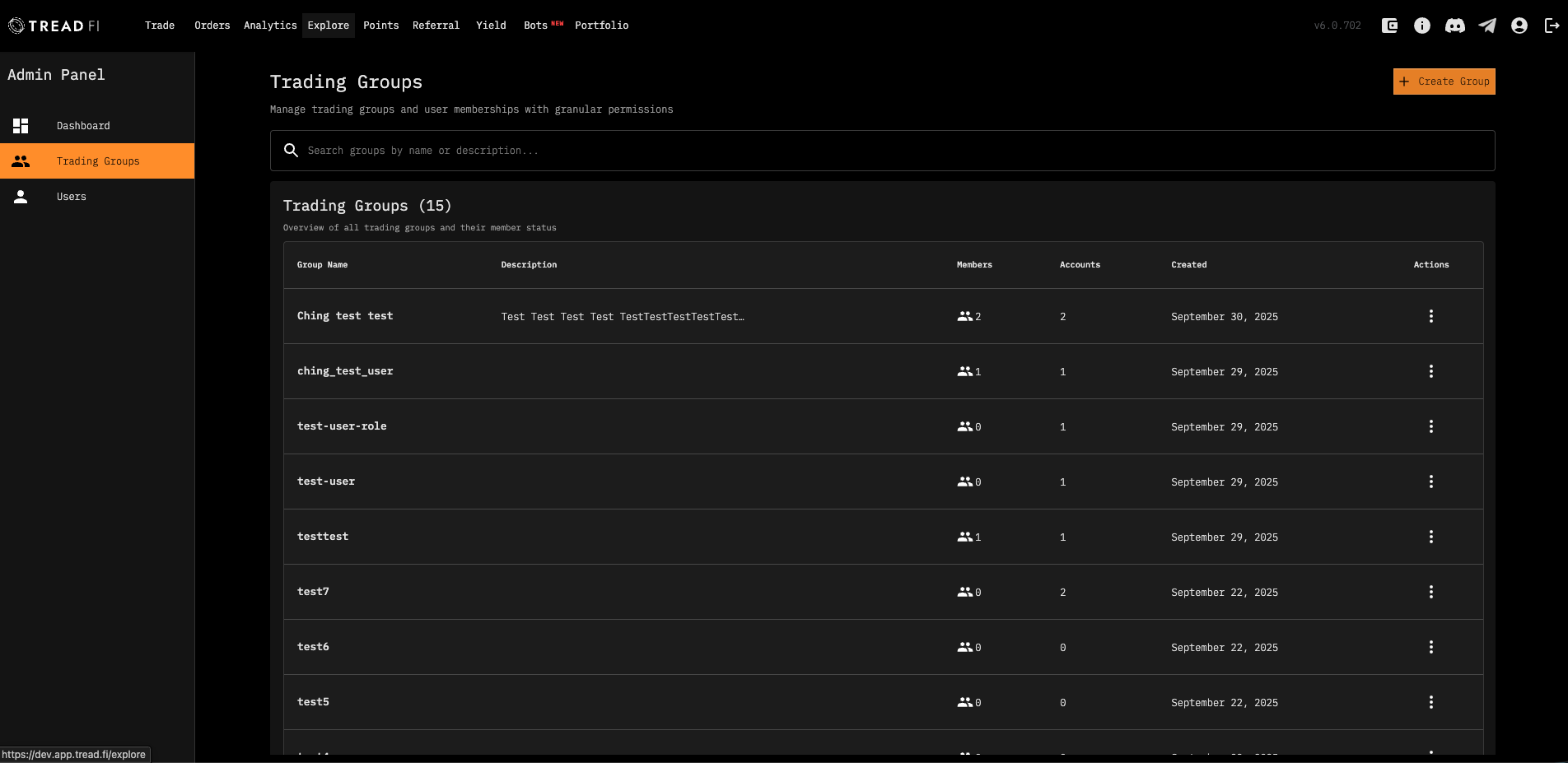
* **Trading Groups**: The core section for creating and managing the groups that link users to exchange accounts.
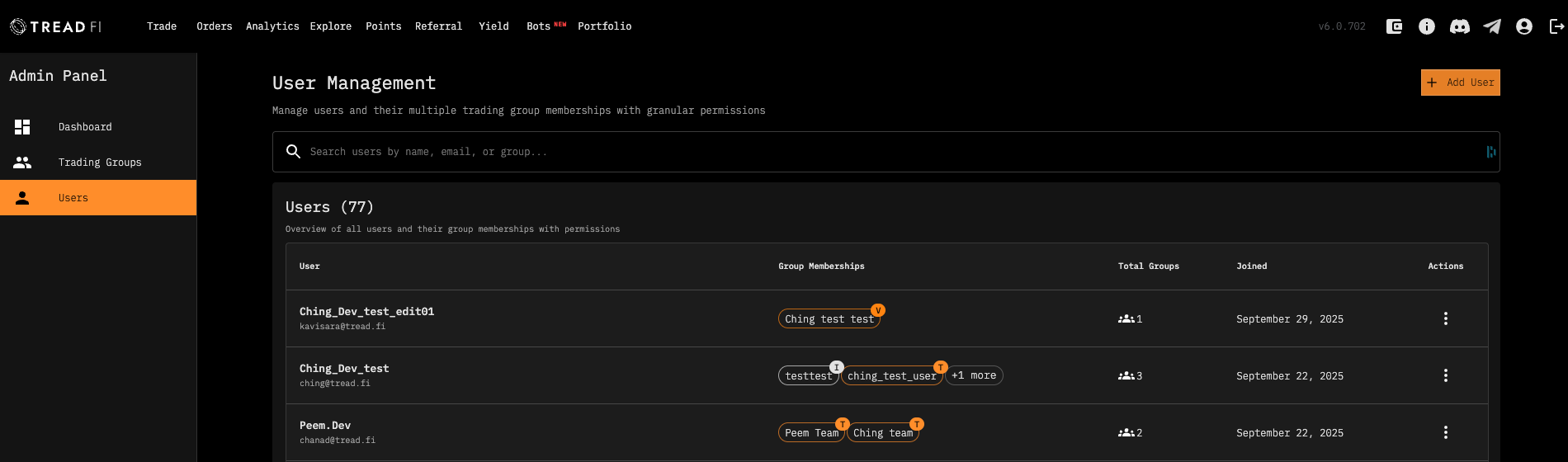
* **Users**: A complete directory for creating users and managing their account details and group memberships.
***
#### 1. Dashboard
The Dashboard is your landing page, offering at-a-glance insights and shortcuts.
* **Key Statistics**: View totals for Users, Trading Groups, and linked Exchange Accounts.
* **Recent Trading Groups**: See recently active groups, their key details, and quickly navigate to them.
* **Recent Users:** A list of the newest members and the groups they belong to.
* **Quick Actions**: Use the New Group and Add User buttons to perform common tasks instantly.
#### 2. Trading Groups
The Trading Groups section is where you can assign who can trade on which exchange accounts.
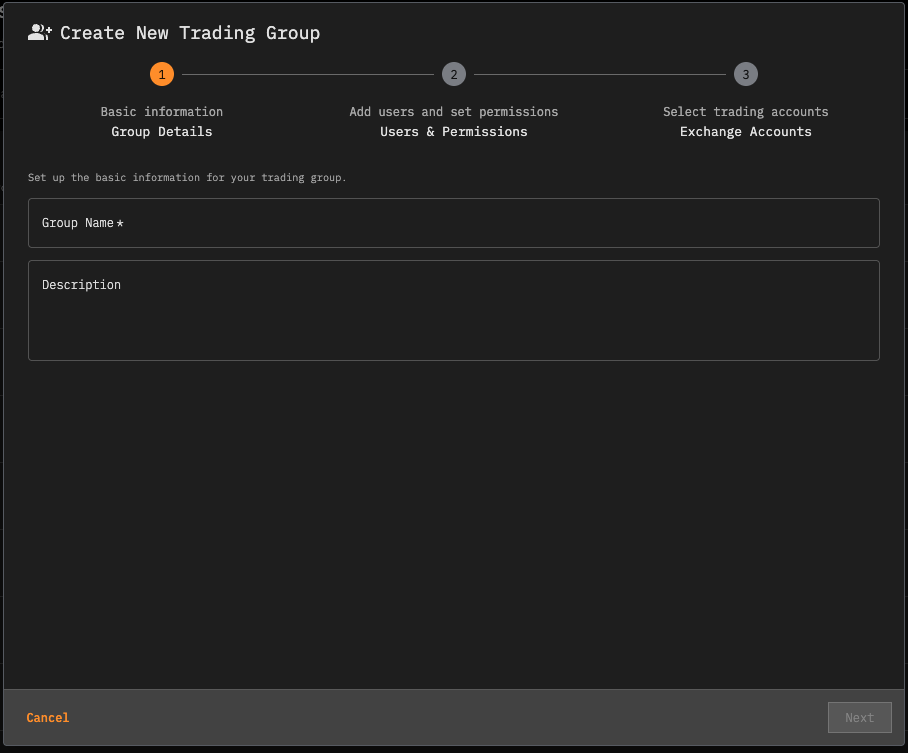
* **Create a Group:** Define a new group with a name and description. You can optionally add members and link exchange accounts during creation.
* **Manage an Existing Group:** Click on any group to view and edit its details.
* **Details**: Update the group's name or description.
* **Accounts**: Attach or remove exchange accounts to control the group's market access.
* **Members**: Add new users with a specific role, edit an existing member's permissions, or remove a member from the group.
* **Delete a Group**: Permanently remove a group and all its member associations. This action requires confirmation.
#### 3. Users
This section serves as your user directory, where you can perform all user-level administration.
* **Create a User**: Set up a new user account with a username, email, and password. You can also grant `Staff` or `Superuser` privileges here.
* **Edit a User:** Update a user's details, set a new password, or change their `Staff`/`Superuser` status.
* **Manage Group Memberships**: This feature lets you see and manage all groups a single user belongs to from one place. You can quickly add the user to new groups or remove them from existing ones.
* **Delete a User**: Permanently delete a user account. This action requires confirmation.
* **Search and Filter**: Easily find users by searching for their name, email, or a group they belong to.
***
#### Permissions and Roles Explained
Permissions are granular and assigned to a user *within a specific group*. A user can have different roles in different groups.
| Role | Can Trade | Can View | Description |
| --------------- | --------- | -------- | ---------------------------------------------------------- |
| Trader | `Yes` | `Yes` | Can execute trades and view all activity for the group. |
| Viewer | `No` | `Yes` | Read-only access to view the group's activity. |
| Isolated Trader | `Yes` | `No` | Can execute trades but cannot view activity. |
| Custom | - | - | Create a custom role by toggling permissions individually. |
#### Key Considerations
* `Real-Time Updates`: All changes made in the Admin Panel—such as adding a user, changing permissions, or linking an account—are applied immediately.
* `Safety Prompts`: Destructive actions, like deleting a user or removing someone from a group, will always prompt for confirmation to prevent accidents.
* `Multiple Group Membership`: A single user can belong to multiple trading groups, each with a different set of permissions and account access. This is useful for segmenting responsibilities.
* `Superuser Privileges`: Grant `Staff` or `Superuser` status with caution, as these roles provide full administrative control over the platform.
#### Quick Start Guide: A Typical Setup
Follow these steps to get your team set up quickly:
1. Create a Trading Group: Navigate to the Trading Groups section (or use the Dashboard shortcut) and click Create Group. Give it a descriptive name (e.g., "Quant Team," "Market Making Desk").
2. Attach Exchange Accounts: Open your newly created group, go to the Accounts tab, and link the exchange API credentials that this group should use.
3. Add Users to the Group: Go to the Members tab and start adding users. Assign each user a role (Trader, Viewer, etc.) that matches their responsibilities.
4. Iterate and Adjust: As your team evolves, you can easily return to the Admin Panel to add new members, create new groups, or adjust permissions as needed.