> For the complete documentation index, see [llms.txt](https://docs.tread.fi/llms.txt). Markdown versions of documentation pages are available by appending `.md` to page URLs; this page is available as [Markdown](https://docs.tread.fi/enterprise/managed-service/aws-cdk.md).
# AWS CDK
### One-step Deployment
*Note: If you have no registered domain under AWS, follow the steps below under **Register Domain***
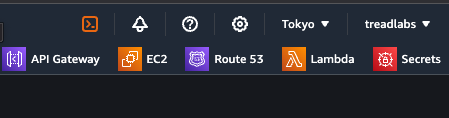
Go into AWS CloudShell (left-most icon on the navigation bar in AWS console)
**Run the following:**
```
git clone https://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@github.com/tread-labs/oa_cdk.git \
&& ./oa_cdk/script/start.sh
```
Follow the prompts with the information below.
| Field | Description |
| ----------- | ---------------------------------------------------------------------------------------------------------------------------------------------------------------------------------------------- |
| License Key | The unique key given to access the app. |
| Domain Name | Your registered domain name (ex. tread.fi) |
| Region | [AWS region code](https://docs.aws.amazon.com/AWSEC2/latest/UserGuide/using-regions-availability-zones.html) for the region your app will be deployed to. Defaulted to ap-northeast-1 (Tokyo). |
**Note: If you already have infrastructure in this region, you might run into an IP limit (default is 5).**\
**The above command will tell you if there aren't enough IPs and automatically request it for you.**
You can also do it yourself in the AWS console at:
{% code overflow="wrap" %}
```
https://{region_code}.console.aws.amazon.com/servicequotas/home/services/ec2/quotas/L-0263D0A3
```
{% endcode %}
Otherwise, after a couple minutes, the set up should be done and you can confirm it's successful by visiting this url with your domain name filled in:
`https://oa.{your_domain_name}/binance/ping`
### Register Domain *(Optional)*
**Skip if you already have a domain registered in AWS Route53.**
* Go to Route 53 -> Left Side Bar: Registered Domains -> Register Domains
* Follow the form to purchase a domain - (Only do Step 1), this creates a Hosted Zone for you
* If you already have a domain in a different provider, you can delegate it to AWS:
* Go to Route 53 -> Left Side Bar: Hosted Zones -> Create Hosted Zone
* Fill in Domain name for the domain you already own (ex. thisismydomain.com), Hit "Create hosted zone"
* Click into your newly created hosted zone, there should already be an NS and a SOA record
* Take note of the 4 values for the "NS" record and change the name servers for your existing registered domain for your DNS provider
**Migrating from the Self-Hosted Service setup?**
Follow the instructions to [delete the previous infrastructure](/enterprise/self-hosted-service/aws-cdk.md#tear-down-infrastructure).
## FAQ
**How do I tear everything down?**
Go into AWS console -> Ensure you're in the right region -> Cloudformation.\
Select TaasOAServiceStack first and hit "Delete" followed by TaasOAVpcStack.
**What infrastructure does this create?**
At a high level it creates a VPC (Virtual Private Cloud) which is a private network for your stuff to live in and it creates an EC2 instance inside of it. The domain names are also created to point to your EC2 instance's IP.